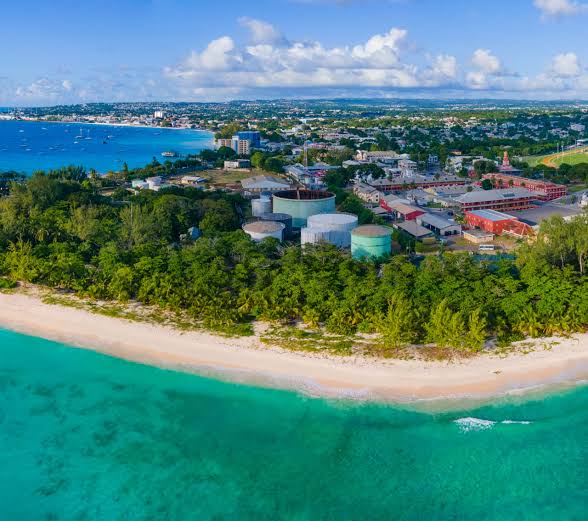
Comprehensive guide to fix Barbados NexaEsim issues, including no service, no data, and activation problems.
Quick Answer
If your NexaEsim in Barbados has no mobile data or shows "No Service" after activation, start with the 60–90 second arrival checklist: 1) Toggle Airplane Mode ON/OFF, 2) Restart your phone, 3) Set the NexaEsim as your Mobile Data line, and 4) Enable Data Roaming for that profile. If this doesn't restore service, proceed to manual network selection and APN checks. Ensure your iPhone is carrier-unlocked for eSIM use.
NexaEsim provides international travel eSIM products for travelers, designed for seamless connectivity. This guide helps you install, activate, and troubleshoot your Barbados eSIM.
Common Reasons Your eSIM Isn't Working in Barbados
Several factors can prevent your NexaEsim from connecting or providing data:
- Device Settings: Airplane Mode, Mobile Data, or Data Roaming is turned off for the eSIM profile, or the wrong SIM line is selected for data.
- Activation/Provisioning Delays: The eSIM profile may still be pending activation on NexaEsim servers or requires an internet connection (e.g., Wi-Fi) to complete provisioning.
- Network Issues: Incorrect APN settings, failed automatic network registration, or a weak signal from the local partner. Temporary local outages, weather disruptions, or peak-time congestion can also affect service.
- Plan Status: Exhausted data balance, an expired plan, or a plan not topped-up.
- Device Compatibility/Lock: Your iPhone might be carrier-locked, preventing foreign eSIMs, or there might be OS-specific network configuration issues.
- App Interference: VPN, Private DNS, or firewall apps blocking mobile data traffic.
- Dual-SIM Conflicts: If using a physical SIM alongside the eSIM, the physical SIM might be prioritized for data.
Immediate Triage: The 60–90 Second Arrival Checklist
Perform these quick steps immediately upon arrival or when you first notice issues:
- Toggle Airplane Mode: Turn Airplane Mode ON for 10 seconds, then OFF. This forces a full radio restart.
- Restart Your Phone: Fully power off your device for 10–15 seconds, then restart it.
- Set eSIM as Mobile Data: Open your phone's Mobile/Cellular settings and ensure your NexaEsim profile is selected as the active line for Mobile Data.
- Enable Data Roaming: For the NexaEsim line, ensure Data Roaming is turned ON.
- Quick Connectivity Test: Open a lightweight website (e.g., example.com) or a map app to confirm data flow.
Expected outcomes: If it connects, use it for a few minutes to confirm stability. If limited or no service, proceed to the detailed troubleshooting steps below.
Three-Step Fast Fix for Data Issues
If the arrival checklist doesn't resolve the problem, follow these steps:
- Power-Cycle & Radio Restart: As above, fully power off your phone for 10–15 seconds, restart, and re-run the arrival checklist.
- Confirm eSIM as Mobile Data & Data Roaming: Double-check that the NexaEsim is chosen for mobile data and that Data Roaming is enabled. (See device-specific sections for exact menu paths).
- Manual Network Selection & Safe APN Reset: Try manually selecting the strongest local network operator. If still no data, reset or verify APN settings (this is generally risk-free and won't delete data).
Device-Specific Troubleshooting
iPhone (iOS) Installation & Troubleshooting
Before you begin, ensure your iPhone is carrier-unlocked. Go to Settings > General > About > Carrier Lock. It should show "No SIM restrictions." If locked, contact your home carrier.
1. Installing Your NexaEsim Profile
Ensure you have Wi-Fi or mobile data available for the initial activation attempt.
- Using QR Code (Recommended):
- Open your NexaEsim order confirmation or account dashboard and have the QR code image ready (on another device or printed).
- On your iPhone: Go to Settings > Cellular (or Mobile Data) > Add Cellular Plan.
- Point your iPhone camera at the QR code.
- When the plan appears, tap Add Cellular Plan.
- Name the plan (e.g., "Barbados NexaEsim") and assign its usage (e.g., Default Data).
- Manual SM–DP+ Entry (Fallback):
- From your NexaEsim order, copy the SM–DP+ address and activation code exactly (avoid extra spaces).
- On your iPhone: Go to Settings > Cellular > Add Cellular Plan > Enter Details Manually.
- Paste the SM–DP+ address and activation code into the matching fields and follow the prompts.
If prompted to confirm a carrier profile or update Carrier Settings, allow it.
2. Post-Installation & Data Fixes (iPhone)
After installation, or if you're experiencing issues:
- Airplane Mode Toggle: Settings > Airplane Mode: toggle ON > wait 10s > toggle OFF.
- Confirm eSIM Active: Settings > Cellular (or Mobile Data) > Cellular Plans: confirm the NexaEsim profile shows as Active.
- Select Data Line: Settings > Cellular > Cellular Data: select your NexaEsim as the Data Line.
- Enable Data Roaming: Settings > Cellular > Cellular Data Options > Data Roaming: turn ON.
- VPN/Private Relay: If you use Private Relay or a VPN, temporarily disable it (Settings > [your VPN app] or Settings > Safari > iCloud Private Relay off) and test again.
- Manual Network Selection: Settings > Cellular > Network Selection: turn Automatic OFF, then pick the strongest available local network manually.
- Reset Network Settings (Last Resort): Settings > General > Transfer or Reset iPhone > Reset > Reset Network Settings. Use this only if multiple attempts fail, as it clears saved Wi-Fi passwords and VPN profiles.
- Reinstall eSIM Profile: Only remove and re-add the eSIM if universal fixes, manual network, and provisioning checks fail, or if NexaEsim support instructs you to. Before removal, note the ICCID (Settings > Cellular > eSIM details) and keep your original QR/SM–DP+ info.
Android (Samsung & Google Pixel) Installation & Troubleshooting
Android menu names vary by manufacturer and OS build. Follow the path closest to your phone.
1. Installing Your NexaEsim Profile
Ensure you have Wi-Fi or mobile data available for the initial activation attempt.
- Samsung (One UI):
- Settings > Connections > SIM Card Manager > Add Mobile Plan.
- Scan the QR code or enter details manually from your NexaEsim order.
- Google Pixel (Stock Android):
- Settings > Network & internet > SIMs > Add eSIM.
- Scan the QR code or use carrier details from your NexaEsim order.
If activation fails, retry the QR/SM–DP+ workflow or enable Wi-Fi to allow provisioning to finish, then reboot.
2. Post-Installation & Data Fixes (Android)
- Airplane Mode Toggle: Settings > Connections > Flight mode (Samsung) or Settings > Network & internet > Airplane mode (Pixel): toggle ON/OFF.
- Confirm eSIM Active & Data Line:
- Samsung: Settings > Connections > SIM manager (or Mobile networks) > confirm NexaEsim profile is active and selected as Mobile Data.
- Pixel: Settings > Network & internet > SIMs > confirm NexaEsim profile active and selected for Mobile data.
- Enable Data Roaming:
- Samsung: Settings > Connections > Mobile networks > Data roaming: enable for the eSIM profile.
- Pixel: Settings > Network & internet > Mobile network > Data roaming: enable it for that profile.
- Manual Network Selection:
- Samsung: Settings > Connections > Mobile networks > Network operators > Search networks and try choosing the strongest listed operator manually.
- Pixel: Settings > Network & internet > Mobile network > Advanced > Automatically select network (toggle off) > pick the strongest operator.
- APN Check: If data attaches but won't load pages, check APN under Access Point Names (Settings > Connections/Network & internet > Mobile network > Access Point Names).
- Reinstall eSIM Profile: Only remove and re-add the eSIM if universal fixes, manual network, and provisioning checks fail, or if NexaEsim support instructs you to. Use your activation QR/SM–DP+ from your NexaEsim email or account page.
APN, Data Roaming, and Manual Network Checks
These are critical steps for resolving data-only failures:
- Data Roaming: Must be ON for most international eSIM plans. This is a very common reason data won't flow after activation.
- Manual Network Selection: If automatic selection chooses a weak roaming partner or fails, switch off automatic selection and try each operator that appears; pick the one with the strongest signal. Do not assume the first listed network is best.
- APN (Access Point Name):
- How to View APN:
- iPhone: Settings > Cellular > Cellular Data Network (or Mobile Data Network).
- Android: Settings > Connections/Network & internet > Mobile networks > Access Point Names.
- APN Reset: Most phones have an option like "Reset to default" within the Access Point Names menu. This restores safe values.
- Specific APN: If NexaEsim supplied a specific APN, use that. Do not invent APN values. If fields are blank and data fails, your plan may need the correct APN entered—check NexaEsim support or plan documentation.
- How to View APN:
- Signal Strength: If manual networks list no operators or only a weak signal, try moving to a different location (e.g., airport terminal, hotel lobby, near a window) and re-run the test.
Checking Your NexaEsim Account & Plan Status
Before deep device troubleshooting, confirm your plan is active and has remaining data in your NexaEsim dashboard.
- Activation Status: Look for the activation timestamp and eSIM profile ID in your account. If your profile shows "pending," provisioning may still be finishing—wait a few minutes and retry the arrival checklist.
- Data Balance: If data is exhausted, top up from your NexaEsim account. NexaEsim supports in-trip top-ups and provides invoiceable receipts.
- Plan Options: For purchase or plan options, review the Barbados product page at Nexa eSIM — Barbados.
Advanced Troubleshooting & Fallbacks
VPN, Private DNS & Apps That Block Mobile Data
Temporarily disable any VPN app and any Private DNS (Settings > Network > Private DNS off) and retry. VPNs can prevent DNS or data handshakes on cellular networks even if Wi-Fi worked earlier. Temporarily uninstall or disable firewall/secure-browser apps and test again.
Fallbacks & Immediate Alternatives
If the eSIM still fails, use these quick fallbacks to stay connected:
- Use Wi-Fi: Connect to hotel or airport Wi-Fi for urgent calls and messages. Use a VPN for secure transactions on public Wi-Fi.
- Buy a Local Physical SIM: Purchase a temporary physical prepaid SIM at Grantley Adams International Airport (BGI) or a city kiosk. Ask staff for a data-only tourist/prepaid package and confirm APN if needed. Typical kiosks operate during normal airport/shop hours.
- Consider a Second eSIM Plan: Purchase a second eSIM plan or top-up via your NexaEsim dashboard as a faster remote purchase.
Preparing for Your Trip
Pre-activate vs. Activate on Arrival
Decide when to activate your eSIM based on your travel style:
| Option | Pros | Cons | When to Pick |
|---|---|---|---|
| Pre-activate before travel | Be online on touchdown; skip airport queues; manage plans/receipts before travel. | Requires correct device compatibility beforehand; plan validity starts immediately. | Short trips, business travel, first-time visitors who need immediate connectivity. |
| Activate on arrival | Can pick strongest local network in person; plan validity starts when you're ready. | May take longer to connect; possible activation troubleshooting; kiosk availability varies. | Experienced travelers who prefer local setup or want to delay plan start date. |
How Much Data Do You Need for Barbados?
Estimate your data needs using GB = days × GB/day. Adjust for expected Wi-Fi availability:
- Light users (navigation, messaging, email): ~0.2–0.5 GB/day
- Moderate users (photos, social, some streaming): ~0.7–1.5 GB/day
- Heavy/streaming users (video calls, large uploads): 2.5–4+ GB/day
If you need to be online on arrival, pre-activate or buy a NexaEsim Barbados eSIM and start it immediately.
Local Carrier Selection & Coverage Notes
- Local Carriers: You may see Digicel and Flow as local network operators.
- Manual Selection: Manually pick the local operator with the strongest signal from your phone’s network list. Do not rely on a single coverage map as a guarantee; maps are models.
- Coverage Variations: Coverage and indoor reception vary. Expect better service in urban and main tourist areas versus remote beaches or countryside. Coverage on beaches and boats can be variable.
- Weather & Seasonality: Barbados has a tropical climate. Heavy storms (especially during the wet/hurricane season, June–November) can temporarily affect cellular service in isolated areas.
Tips for Stable Data While Moving Between Cities in Barbados
- Offline-First: Download island maps (e.g., Google Maps offline areas), tickets, and large files while on known-good Wi-Fi to avoid data interruptions and conserve mobile data.
- Re-register Network: When changing locations, run a quick manual network selection or toggle airplane mode to force a fresh registration to the strongest local operator.
- Wi-Fi Calling: Enable Wi-Fi calling if your device and app support it, especially if you have intermittent mobile signal.
- Background Data: Limit background app sync (Settings > Apps > Background data) to save data and reduce reconnect issues.
- Top-Up Early: If your NexaEsim plan shows a low balance, top up before you need data to avoid 'no data' due to expiry.
Visa & Entry Reminders for Barbados
Always confirm visa, entry, and health requirements with official government, embassy, or airline sources before travel. This guide is not a substitute for official advice.
Collecting Diagnostics for NexaEsim Support
Collecting the right evidence speeds resolution. Capture these details and paste them into your support ticket or message:
- ORDER ID: Your purchase and plan identifier.
- Activation Timestamp: (Local time + timezone) Shows when provisioning was triggered.
- Device Details: Make/model and OS version (e.g., iPhone 15, iOS 17.4; Samsung Galaxy S24, Android 14).
- IMEI: (Settings > General > About on iPhone; dial *#06# on Android).
- eSIM Profile ID / ICCID: From your NexaEsim dashboard or device settings (Settings > Cellular > eSIM details on iPhone).
- Symptoms: Exact error text shown (e.g., "No Service", "No SIM", "No Data", "Connected but no internet").
- Steps Tried: List all troubleshooting steps you've already attempted (e.g., 60–90s arrival test, Data Roaming ON, Manual network selection, Reinstalled profile).
- Network Information: Operator name shown on your phone (status bar and in Settings > Mobile networks > Network operators).
- Signal Strength: Number of signal bars (0-4).
- APN Status: Was APN checked or changed? (Y/N).
- Time & Location: (Local time, e.g., BGI arrival or city/island area).
- Screenshots: NexaEsim dashboard showing plan status, device network operator screen, APN page, status bar showing network name/signal, and a speed-test result if available.
Copy-Ready Support Message Template
Edit placeholders and paste this into your support chat or email:
Subject: [ORDER ID] — Barbados eSIM Data/Service Issue
Hello NexaEsim Support,
I am experiencing issues with my NexaEsim for Barbados.
- ORDER ID: [YOUR_ORDER_ID]
- ACTIVATION TIMESTAMP (local + TZ): [YYYY-MM-DD HH:MM TZ]
- DEVICE: [BRAND & MODEL], OS: [VERSION]
- IMEI: [YOUR_IMEI]
- eSIM Profile ID / ICCID: [YOUR_PROFILE_ID_OR_ICCID]
- SYMPTOMS: [e.g., "No Service" after activation, "Mobile data not working", "Connected but no internet"]
- STEPS TRIED: [List all steps, e.g., 60–90s arrival test, Airplane Mode toggle, Data Roaming ON, Manual network selection, APN check, Reinstalled profile (if applicable)]
- OPERATOR NAME on phone: [e.g., Digicel, Flow, or "No Service"]
- SIGNAL BARS: [0-4]
- APN STATUS: [Checked/Changed Y/N]
- TIME & LOCATION TESTED: [Local time, e.g., BGI arrival, Bridgetown]
Screenshots attached: [List attached screenshots, e.g., dashboard, operator list, APN, status bar, speed-test]
Please advise next steps and check provisioning for my profile.
Thanks,
[Your Name]
Troubleshooting Summary: Quick Comparison of Fixes
| Symptom | Probable Cause | Quick Test / One-Line Fix | Next Step if Fail |
|---|---|---|---|
| Activation failed / Provisioning timeout | Order not fully provisioned or temporary server delay. | Wait 5–10 minutes, retry QR or manual SM–DP+. | Contact NexaEsim with order ID; enable Wi-Fi for provisioning. |
| No Signal / No Service after activation | Data Roaming off, device locked, wrong data line, or poor local signal. | Enable Data Roaming, confirm phone unlocked, toggle Airplane Mode, run 60-90s checklist. | Power-cycle, manual network selection; collect diagnostics and contact support. |
| Connected but no internet / Cellular data not working | APN not set or incorrect, VPN/Private DNS blocking, plan expired/exhausted. | Disable VPN/Private DNS, try site load, check data balance. | Reset APN to default, top-up plan if needed; collect diagnostics. |
| Intermittent drops / Poor coverage | Weak signal, local congestion, or automatic selection picked weak partner. | Try different location (e.g., near window), manual select operator. | Collect speed-test & operator screenshots; escalate to support with location details. |
| QR won’t scan / SM–DP+ invalid | Poor photo/print quality or copy/paste error; device compatibility. | Use a fresh QR from your account dashboard or copy SM–DP+ exactly (no spaces). | Confirm iPhone is unlocked; contact support with device model. |
Frequently Asked Questions (FAQ)
Why is my Barbados NexaEsim showing "No Service" or "No Data" after activation?
Common causes include device settings (Airplane Mode, Data Roaming off, wrong data line selected), incomplete provisioning, exhausted data, or weak local signal. Run the 60–90s arrival checklist and collect diagnostics before contacting support.
How do I enable Data Roaming on iPhone/Android?
iPhone: Settings > Cellular > Cellular Data Options > Data Roaming. Android (One UI/Pixel): Settings > Connections/Network & internet > Mobile network > Data roaming. Enable for the NexaEsim profile.
What is the 60–90s arrival test I should run?
Toggle airplane mode, set your NexaEsim as Mobile Data, enable Data Roaming, and try loading a lightweight website or a short speed test. Record operator names and timestamps. This helps quickly identify common device-level blocks.
How long should eSIM provisioning take on arrival?
Provisioning often completes in minutes but varies by device, OS, and local network. If it's not active within 10–15 minutes, enable Wi-Fi, reboot, and follow troubleshooting steps or contact support.
Can VPN or Private DNS stop mobile data?
Yes. Disable VPN apps and Private DNS temporarily—these can block DNS or data handshakes on cellular networks even if Wi-Fi appears to work.
Should I pre-activate my Barbados eSIM or activate on arrival?
Pre-activating online saves time and gets you online on arrival. Activate-on-arrival is an option if you prefer to pick local network settings in person or want to delay the plan start date, but it carries more risk of troubleshooting delays.
Will eSIMs work at Grantley Adams International Airport (BGI) on arrival?
Usually yes, in terminals and arrival areas. We recommend pre-activating to save time and running the 60–90s arrival test immediately after landing to confirm. If not, try manual network selection and the quick fixes listed.
How do I check if my NexaEsim activation/provisioning completed?
Open your NexaEsim dashboard and confirm the eSIM profile shows as Active with an activation timestamp and remaining data. If the status is "pending" or missing, include that info in your support message.
How many GB do I need for a 3-day trip to Barbados?
For a 3-day trip: Light user: ~0.6–1.5 GB total. Moderate: 2–4.5 GB. Heavy: 7.5–12 GB. Adjust based on your expected Wi-Fi usage and activities.
Can I top up my NexaEsim plan in Barbados if I run out of data?
Yes, NexaEsim supports in-trip top-ups from your account or app. Top-ups usually provision within minutes but allow up to an hour in rare cases. Keep invoiceable receipts for your records.
Is my iPhone compatible with NexaEsim Barbados?
Most modern iPhones (iPhone XS and newer) support eSIMs. Check Settings > General > About > Carrier Lock ("No SIM restrictions") and use the NexaEsim compatibility checker. Contact support with your model number if unsure.
Which local network is best in Barbados?
You may see Digicel and Flow. Coverage and performance vary by location and time of day. Manually select the strongest signal from your phone's network list. We do not guarantee one will always be better.
Still Unresolved? Contact NexaEsim Support
If you've followed all the steps above and still have no mobile data or service, gather the diagnostics listed earlier and contact Nexa eSIM 24/7 support. For plan checks or to buy/top-up a Barbados eSIM plan, review options on the product page: Nexa eSIM — Barbados.

